Client Admin User Guide
This guide is intended for Client Admins and covers day-to-day management operations for your project (Client) on the Turing Developer Platform.
Industry project settlement discounts have been effective since August 1, 2026. View the industry project settlement discounts for applicability, discounts by model series, and future adjustment rules.
For questions about billing, charges, or usage, you can:
- Contact your account representative: Reach the operations team via Get Help to discuss billing, invoices, and related matters.
- Self-serve usage & cost queries: Use turing-cli operations to query your project's usage, costs, token consumption, and itemized breakdowns.
A Client Admin is the administrator of a specific project. Operations are performed within the project workspace (/projects), and you can only manage projects you have permission for. This role is distinct from the platform-level SYSTEM administrator.
Project Workspace & Permissions
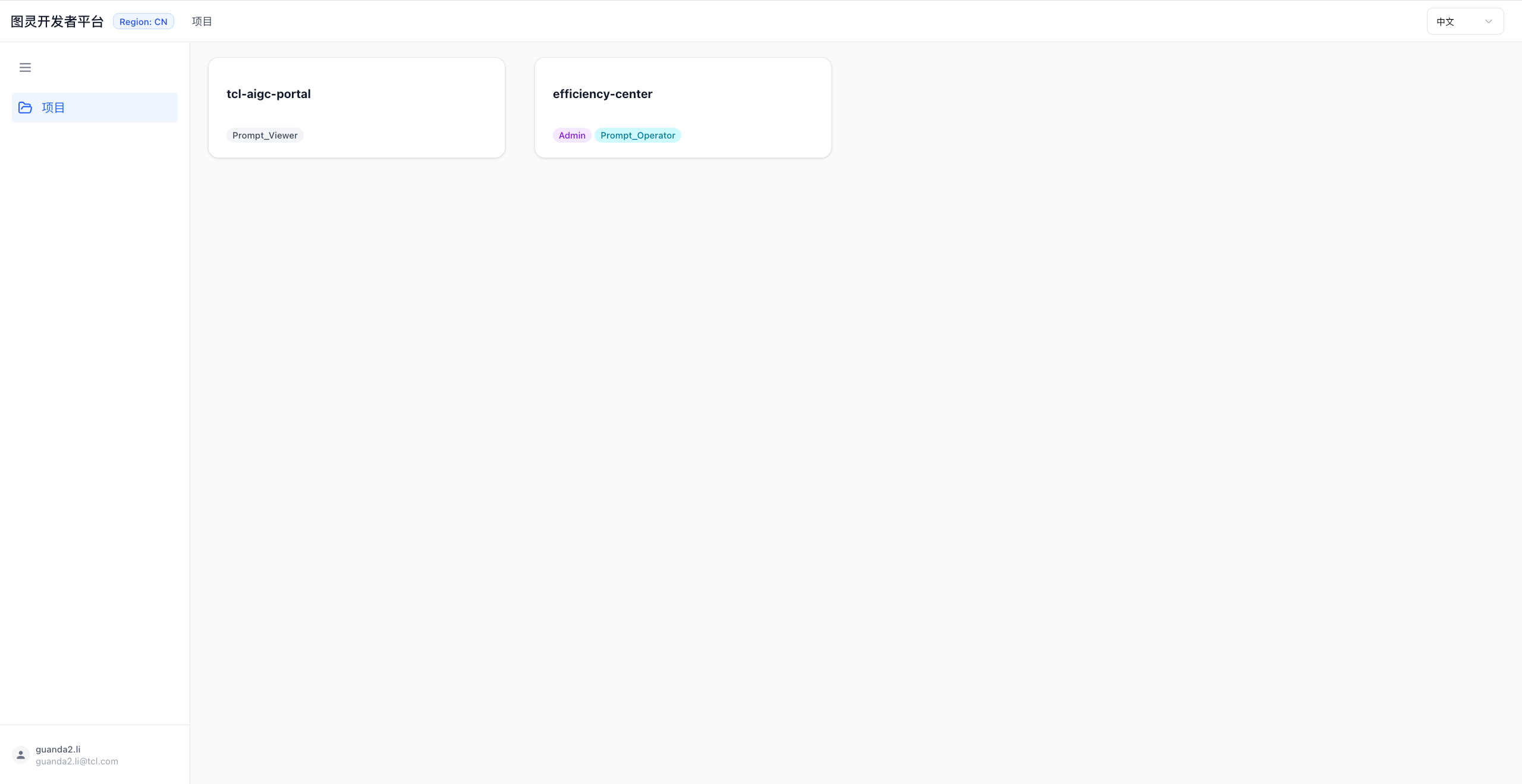
Open the Turing Platform Projects page and log in. On the project list page, click the project card you have access to in order to enter that project's workspace. The default landing page is API Keys.
The left sidebar menu items are displayed based on your role. The following two menu items are exclusive to Client Admins (users without this role cannot see them, and direct URL access will redirect back to the project home page):
| Menu | Description |
|---|---|
| API Keys | Manage API Keys for each environment of the project |
| Settings | Manage project participants and contacts |
API Keys Management
Path: Project Workspace › API Keys. This page is used to manage API Keys across environments for your project.
- The environment dropdown in the upper-right corner switches between environments (dev / test / pre / live / prod, depending on which environments have been enabled for your project). All key listings and operations apply to the currently selected environment.
- Use the Active / Revoked tabs to view keys that are currently active or have been revoked.
- The search box supports fuzzy filtering by Key Name, Key Prefix, or Description.
- Table columns: Key Name, Environment, Status, Description, Prefix (masked, e.g.
sk-xxxx****xxxxx), Action.
Creating an API Key
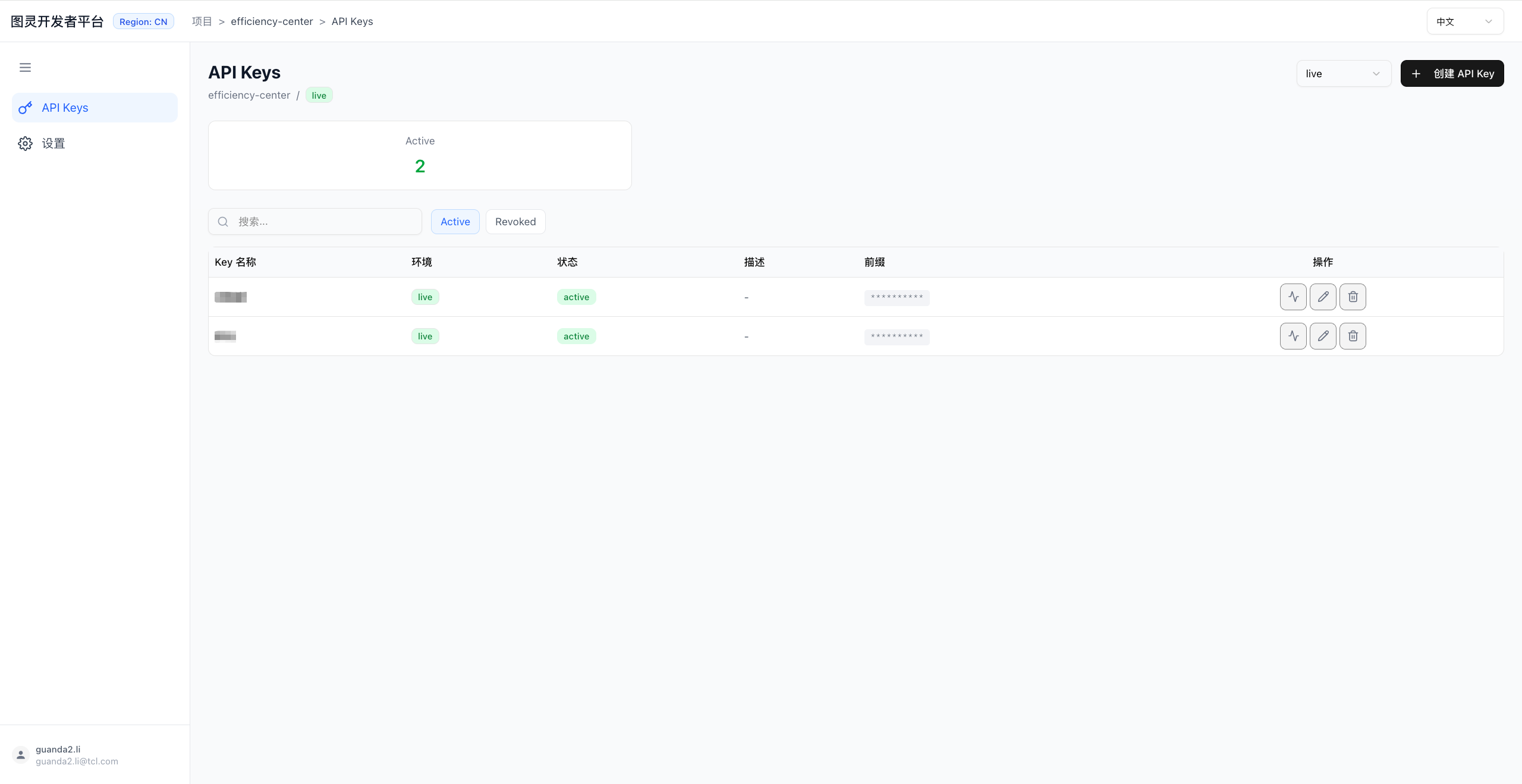
- Confirm the target environment is selected, then click Create API Key in the upper-right corner.
- Enter a Key Name (required, e.g.
prod-iot-001) and an optional Description. - Click Create.
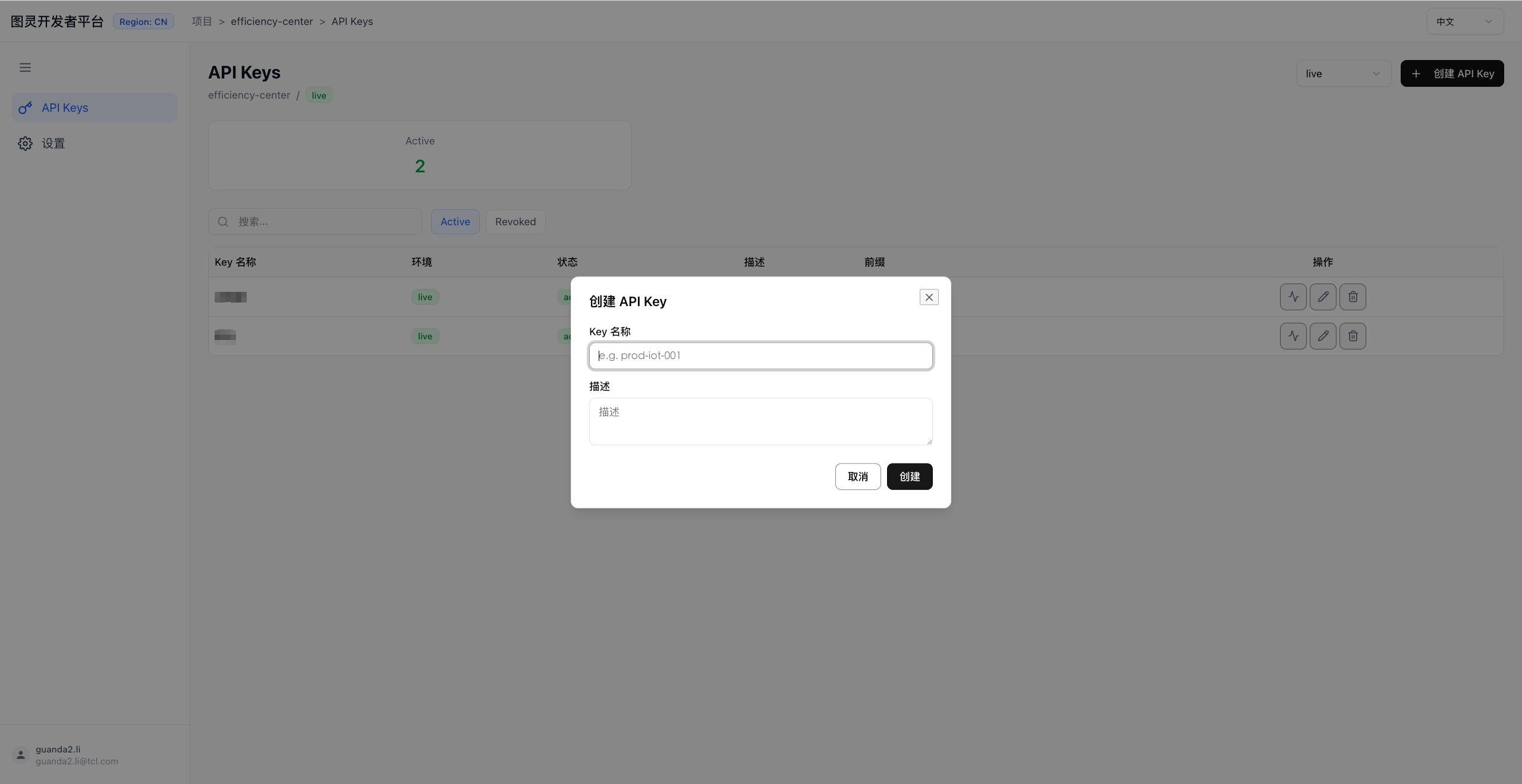
After successful creation, a dialog will display the full secret key one time only. The complete key cannot be viewed again after closing this dialog. Copy and store it securely immediately. If you forget to save it, create a new key and revoke the old one.
Editing & Revoking
- Edit: Click the edit (pencil) icon on a key's row to update the Key Name or Description.
- Revoke: Click the revoke (trash) icon on an active key's row. After a confirmation prompt, the key is moved to the Revoked tab. Revocation is irreversible—proceed with caution.
Usage Monitoring
Click a key's row (or the monitoring icon within the row) to open that key's API Monitor page, where you can view call volume statistics (Dashboard) and call logs (Logs). Filtering is supported by time range (24h / 7d / 30d / custom), model, request headers, Trace ID, and more.
Settings — Contact Management
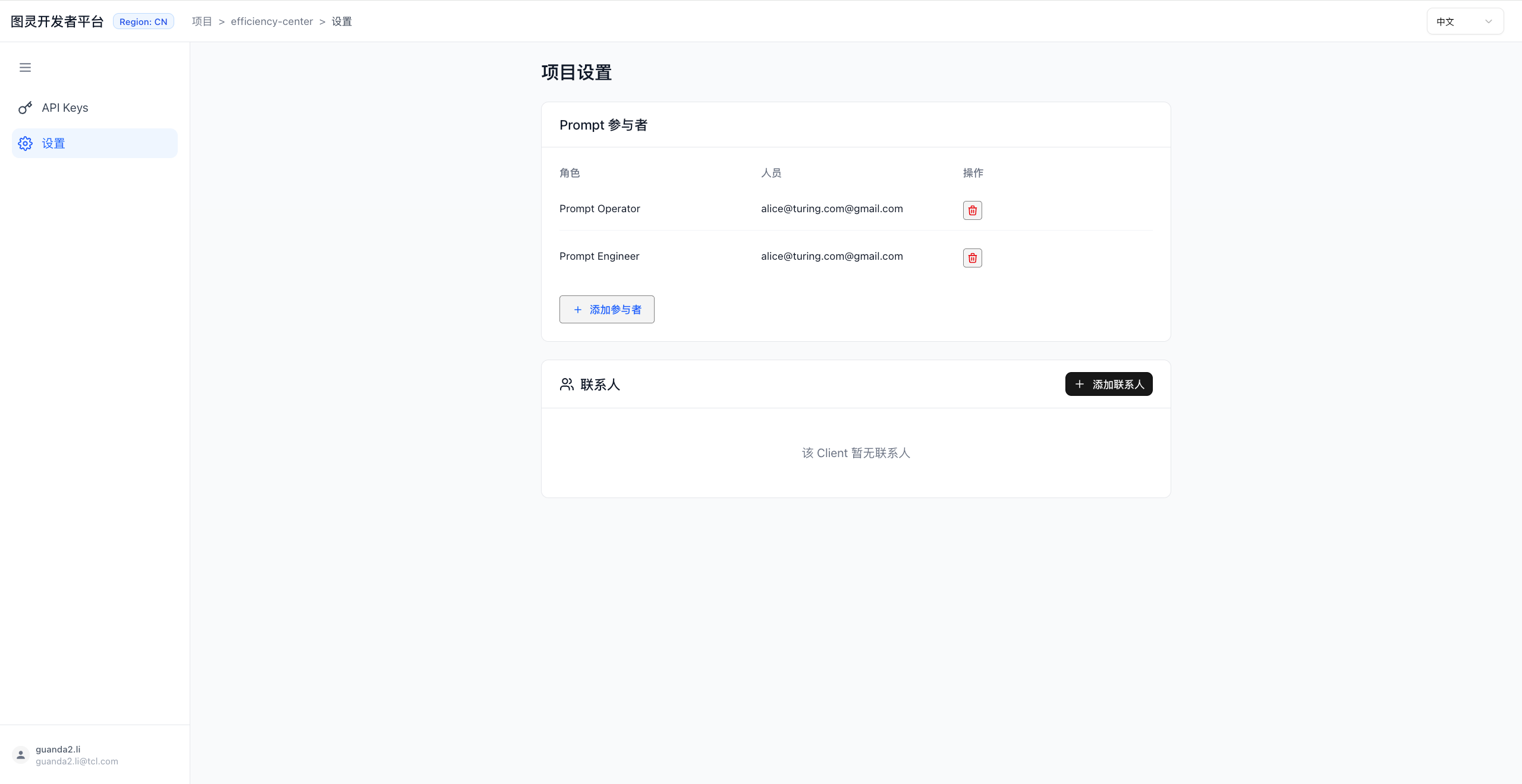
Path: Project Workspace › Settings. Use this page to maintain the project's contact list. Supported operations: Add / Edit / Delete.
- Add a contact: Click Add Contact and fill in Name (optional), Username (required, OA username), Email (required, must be a valid email address), and Phone (optional). The Username must not duplicate an existing contact.
- Edit a contact: Click the edit icon on a contact's row. The Username cannot be changed during editing; only Name, Email, and Phone can be modified.
- Delete a contact: Click the delete icon on a contact's row.
Industry Project Settlement Discounts
The following discounts apply only to projects onboarded to the Turing LLM Platform as industry projects. They are used for monthly industry project settlement and do not apply to individual users or other usage scenarios.
Effective 00:00 on August 1, 2026 (Beijing Time), industry projects are settled using the following standard discounts by model series:
| Model series | Discount |
|---|---|
| GPT series | 10% off (90% of the billed amount) |
| Qwen series | 30% off (70% of the billed amount) |
| Doubao series | 10% off (90% of the billed amount) |
| Gemini, Claude, Kimi, MiniMax, DeepSeek, and GLM series | List price (no discount) |
For settlement, the platform bill first calculates the amount from model usage, base rates, and supported official special pricing, and then applies the discount above. If the platform bill already includes a vendor promotion, rebate, or other special offer, that bill is used directly and the discount is not applied again.
These discounts remain in effect until the corresponding Provider routes and Model IDs go live and migration begins. The platform will then publish more detailed discount rules by Model ID. When the same model is served through different Providers with different prices, separate Model IDs will identify their respective settlement terms.
Projects using models that have not yet migrated will continue to receive the discounts in this section. If a discount changes before migration, this notice will be updated promptly. The applicable discount is determined by when the Usage occurred; later changes do not retroactively alter existing bills.
FAQ
Why can't I see the API Keys / Settings menu? These two menu items are only available to the Client Admin of the current project. Verify that your role in this project is Client Admin. Accessing the URLs directly will also redirect you back to the project home page.
What if I forget to save the full secret key after creating an API Key? The full secret key is displayed only once at creation and cannot be retrieved afterward. Create a new key and revoke the old, unsaved one.
Why do some keys not have edit/revoke buttons? Root Keys are protected and cannot be edited or revoked, so those action buttons are not displayed for them.
Can I manage other projects? You can only manage projects for which you have been granted the Client Admin role. Contact the platform administrator (SYSTEM) to request access to additional projects.